
In a previous project, to ensure that the fixed header would blend naturally with the content and not inconvenience users when scrolling down, it was implemented to undergo visual changes.

When scrolling occurs, a shadow appears on the header, opacity is adjusted, and the header height 72px from 56px is slightly reduced.
export const headerContainer = recipe({
	base: style({
		height: '4.5rem', // 72px
		padding: '0.5rem 0',
		transition: 'all 0.3s cubic-bezier(0.4, 0, 0.2, 1)',
		animation: `${fadeIn} 0.5s ease-out`,
		borderBottom: '1px solid transparent',
	}),
	variants: {
		isScrolled: {
			true: {
				height: '3.5rem', // 56px
				backgroundColor: 'rgba(255, 255, 255, 0.85)',
				backdropFilter: 'blur(8px)',
				WebkitBackdropFilter: 'blur(8px)',
				boxShadow: '0 2px 10px rgba(0, 0, 0, 0.05)',
				height: '3.5rem',
				padding: '0.25rem 0',
			},
		},
	},
});
Problem Encountered
However, in certain situations, the header's style kept changing, causing a flickering phenomenon.
import { useEffect, useState } from 'react';

export const useScrollDetection = (threshold: number) => {
  const [isScrolled, setIsScrolled] = useState(false);

  useEffect(() => {
    const handleScroll = () => {
      const currentScrollY = window.scrollY;

      if (!isScrolled && currentScrollY > threshold) {
        setIsScrolled(true);
      } else if (isScrolled && currentScrollY < threshold) {
        setIsScrolled(false);
      }
    };

    window.addEventListener('scroll', handleScroll, { passive: true });

    return () => {
      window.removeEventListener('scroll', handleScroll);
    };
  }, [threshold, isScrolled]);

  return isScrolled;
};
As shown above, the scroll status was being detected,
When a specific scroll position is reached, isScrolled, the state value kept changing.
Since the scroll status was determined by this state value and the header style was applied accordingly, the header continuously changed styles, leading to a problem.

This results in scroll events constantly occurring, which was detrimental to performance, and the header style, intended to provide a seamless user experience, ironically caused inconvenience.
"Why does the problem occur only in specific sections?" 🤔
Upon checking which section was repeatedly flickering, it was found that when the scroll position was 50px ~ 72px between the problem kept occurring.
Checking the console revealed
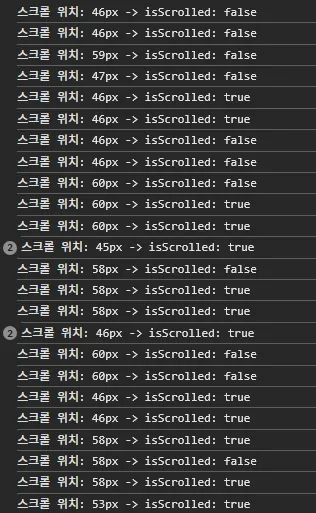
In other words, the state kept changing between my set threshold: 50px and the header height of 72px.
The specific problematic sections were as follows.
✅ 0px ~ 50px → Normal (header height 72px maintained)
⚠️ 51px ~ 72px → Problematic section
✅ 72px 이상 → Normal (header height 56px maintained)
Cause of the Problem
When the scroll position reaches 51px, isScrolled becomes true, and the header height 72px → 56px is reduced to.
However, an unexpected problem occurred during this process.
- As the header shrinks, the overall page height also decreases.
- As the page height changes, the browser automatically readjusts the scroll position.
- Due to this adjustment, the scroll position drops back below
50px. - Then the header becomes
72pxagain, and as the page height increases, the scroll position changes yet again.
This process repeats, causing the header size to continuously flicker.
If the scroll position is 72px or more, meaning it has scrolled down sufficiently,
the page is already sufficiently scrolled, so the header size change does not affect the threshold.
However, 51px ~ 72px if scrolling stops between , the header size changes, altering the page height, and the browser automatically adjusts the scroll position, leading to an infinite loop.
To solve this problem, a method of introducing a certain margin (buffer) is needed so that state changes do not unnecessarily repeat near a specific threshold.
In other words, the state does not change immediately, but rather changes are only reflected when a certain range is exceeded.
This principle is mathematically called Hysteresis, where the output does not immediately follow the input value of the system, and a state change only occurs when a specific range is exceeded.
By applying this hysteresis pattern that provides a margin for state changes, the state only changes when the scroll definitively leaves a specific range, preventing header flickering and inducing a natural transition.
In fact, MUI(Material-UI)'s useScrollTrigger hook also offers a hysteresis option. The disableHysteresis option allows enabling or disabling hysteresis, thereby controlling state changes based on scroll direction.
Solving the Problem
The hysteresis pattern is a method where state changes are not performed immediately, but only when a specific range is exceeded.
- Instead of immediately changing the
isScrolledvalue based on50px, - If the scroll is 70px or more,
isScrolled: true(header shrinks) - If the scroll is 30px or less,
isScrolled: false(header original size)
const currentScrollY = window.scrollY;

if (!isScrolled && currentScrollY > threshold + hysteresis) {
	setIsScrolled(true); // 스크롤이 기준을 넘으면 헤더 축소
} else if (isScrolled && currentScrollY < threshold - hysteresis) {
	setIsScrolled(false); // 스크롤이 기준 이하로 내려가면 헤더 원래 크기로
}
The reason for setting a buffer value is that small threshold changes can cause unintended behavior.
By clearly defining the criteria for state changes and preventing unnecessary changes, the flickering phenomenon of the header between 50px ~ 72px can be prevented.
This approach significantly improves user experience. The UI operates more stably and naturally, allowing efficient state management even for continuously changing values like scroll-based animations.
For example, if the scroll exceeds 70px, the header shrinks, and when it is less than 30px, it returns to its original size.
In between (30px ~ 70px), no state change occurs, so it only responds to scrolling as intended by the user.
Improving Performance
Although the hysteresis pattern prevents unnecessary state changes, there are still areas that need improvement.
For example, even when the scroll is beyond 70px and isScrolled is already set to true, the condition is unnecessarily checked every time a scroll event occurs. The same applies below 30px.
In such situations, requestAnimationFrame can be used to improve performance.
requestAnimationFrame helps smoothly handle animations and scroll events by executing a function in sync with the browser's screen refresh rate. It is called approximately every 16.6ms, preventing unnecessary rendering and optimizing performance.
For a detailed understanding of requestAnimationFrame, please refer to the article below.
Let's Compare
To test scroll performance, clicking a button repeatedly cycles between 71px and 29px (the points where the state changes and re-renders). setInterval was used to handle scrolling at 16ms intervals, and it was set to stop automatically after 10 seconds.

	const handleAutoScroll = () => {
		const startTime = performance.now();
		let isScrolling = true;
		const THRESHOLD = 50;
		const HYSTERESIS = 20;
		let toggle = true;

		// 초기 위치: 71px
		window.scrollTo(0, THRESHOLD + HYSTERESIS + 1);

		const interval = setInterval(() => {
			if (!isScrolling) {
				clearInterval(interval);
				return;
			}

			// 71px ↔ 29px 반복
			window.scrollTo(0, toggle ?
				THRESHOLD + HYSTERESIS + 1 :
				THRESHOLD - HYSTERESIS - 1
			);
			toggle = !toggle;

			// 10초 경과 체크
			if (performance.now() - startTime >= 10000) {
				isScrolling = false;
				clearInterval(interval);
			}
		}, 16);
	};

	<Button onClick={handleAutoScroll} marginY='10'>
			스크롤 성능 측정 버튼
	</Button>
Measuring in the performance tab after clicking the button revealed
when requestAnimationFrame was not used (original code)
import { useEffect, useState } from 'react';

const hysteresis = 20;

export const useScrollDetection = (threshold: number) => {
  const [isScrolled, setIsScrolled] = useState(false);

  useEffect(() => {
    const handleScroll = () => {
      const currentScrollY = window.scrollY;

      if (!isScrolled && currentScrollY > threshold + hysteresis) {
        setIsScrolled(true);
      } else if (isScrolled && currentScrollY < threshold - hysteresis) {
        setIsScrolled(false);
      }
    };

    window.addEventListener('scroll', handleScroll, { passive: true });

    return () => {
      window.removeEventListener('scroll', handleScroll);
    };
  }, [threshold, isScrolled]);

  return isScrolled;
};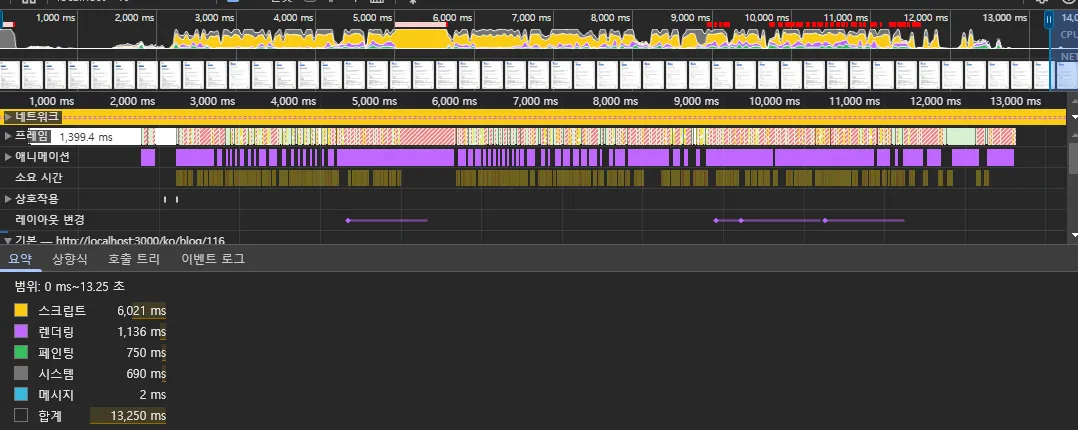
isScrolledcomponent re-renders whenever the state changes.- Although hysteresis limited state changes, the event handler itself executed very frequently.
occurred.
requestAnimationFrame Performance measurement after application
import { useRef } from \"react\";

import { useEffect, useState } from 'react';

const hysteresis = 20;

export const useScrollDetection = (threshold: number) => {
  const [isScrolled, setIsScrolled] = useState(false);
  const ticking = useRef(false); // requestAnimationFrame 중복 호출 방지

  useEffect(() => {
    const handleScroll = () => {
      if (!ticking.current) {
        ticking.current = true;
        requestAnimationFrame(() => {
          const currentScrollY = window.scrollY;

          if (!isScrolled && currentScrollY > threshold + hysteresis) {
            setIsScrolled(true);
          } else if (isScrolled && currentScrollY < threshold - hysteresis) {
            setIsScrolled(false);
          }

          ticking.current = false;
        });
      }
    };

    window.addEventListener('scroll', handleScroll, { passive: true });

    return () => {
      window.removeEventListener('scroll', handleScroll);
    };
  }, [threshold, isScrolled]);

  return isScrolled;
};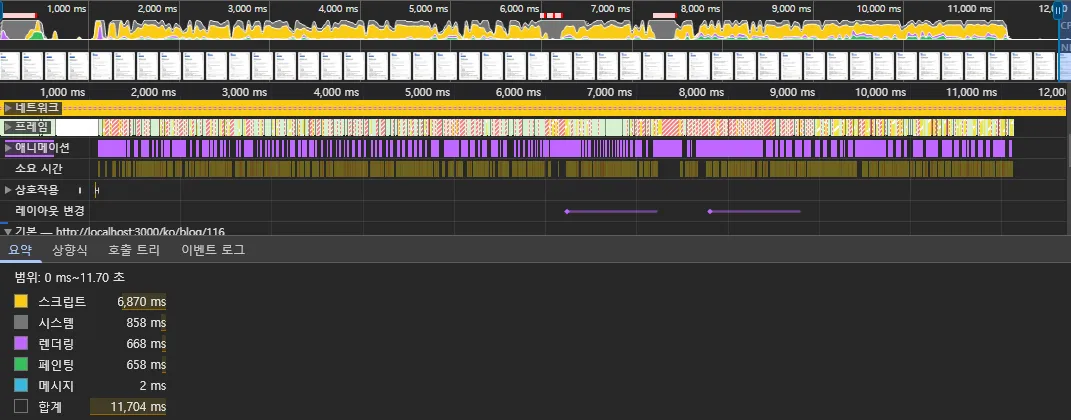
Improved Rendering Performance
- Rendering time 1,136ms → 668ms significantly decreased.
RAFsynchronized with the browser's rendering cycle for more efficient rendering.
Painting Optimization
- Painting time also 750ms → 658ms decreased.
- Reduced unnecessary screen updates effect.
Overall, rendering and painting performance improved, resulting in an enhanced user experience.
Here, it can be seen that the ticking flag was applied, and the ticking ref plays an important role in preventing duplicate requestAnimationFrame (RAF) reservations.
For a detailed explanation of the `ticking` behavior in requestAnimationFrame, the article below was referenced.
Looking at this process in code:
const ticking = useRef(false);  // 초기값 false

const handleScroll = () => {
  // 1️⃣ RAF가 예약되지 않은 상태일 때만 실행
  if (!ticking.current) {
    // 2️⃣ 플래그를 true로 설정해 추가 예약 방지
    ticking.current = true;

    requestAnimationFrame(() => {
      // 4️⃣ RAF 콜백 내부 로직 실행
      const currentScrollY = window.scrollY;
      if (!isScrolled && currentScrollY > threshold + hysteresis) {
        setIsScrolled(true);
      } else if (isScrolled && currentScrollY < threshold - hysteresis) {
        setIsScrolled(false);
      }

      // 5️⃣ 로직 실행 후 플래그를 false로 변경
      ticking.current = false;
    });
  }
  // 3️⃣ ticking이 true인 경우 추가 RAF 예약 없이 종료
};
- Scroll event occurs →
handleScrollfunction is calledrequestAnimationFrameis reserved only whenticking.currentisfalse.- When
requestAnimationFrameis executed,ticking.currentis set tofalse.
- Scroll events continue to occur → while
ticking.currentistrue, no additionalrequestAnimationFramereservation is made. - After one
requestAnimationFrameexecution finishes,ticking.currentis changed back tofalse, making a newrequestAnimationFramereservation possible when the next scroll event occurs.
By doing so,
Preventing unnecessary rAF reservations: prevents performance degradation by avoiding duplicate reservations.
Synchronization with Rendering Cycle: requestAnimationFrame executes in sync with the browser's rendering cycle, optimizing performance.
Optimizing Memory and CPU Usage: reduces CPU and memory usage by minimizing repetitive rendering.
Performance Improvement Effects
Hysteresis Application
- Stable transitions without unnecessary state changes
- Natural UI by resolving flickering issues
- Preventing repetitive rendering around the threshold
RAF Optimization
- Efficient processing synchronized with the browser's rendering cycle
- Improved performance through scroll event optimization
- Implementation of smooth animation effects
When scrolling occurs, RAF waits for the next frame, checks hysteresis conditions, and updates the state only if necessary.
Through this, unnecessary computations are reduced, and a smooth user experience can be provided.
Conclusion
This article covered performance optimization while resolving issues encountered during the implementation of a scroll-responsive header.
The hysteresis pattern reduced unnecessary state changes, and requestAnimationFrame was used to improve rendering performance. Through this process, I realized once again that small UI changes can cause unexpected problems.
This experience confirmed that performance optimization is a crucial factor in enhancing user experience.
Going forward, I believe it's important to continue contemplating and researching performance optimization to provide an even better user experience.
References
https://inpa.tistory.com/entry/%F0%9F%8C%90-requestAnimationFrame-%EA%B0%80%EC%9D%B4%EB%93%9C
https://jbee.io/articles/web/%EC%8A%A4%ED%81%AC%EB%A1%A4 event optimization